Playing an RPG game can be really enjoying but playing it without fullscreen on windows will make it less enjoyable.
Many players don’t know how they can make undertale fullscreen in windows 10. By this, the players can’t get most from their gaming monitor. As this is less enjoyful.
In this guide, we’ll discuss about different method about how you can make undertale fullscreen in windows 10. So, let’s get started!
How to Make Undertale Fullscreen in Windows 10
When we launch the undertale, we can see that the button that maximize all the windows is greyed and is unavailable. Fortunately, you can try these methods to make undertale fullscreen on mac. Follow along with me.
1. Alt + Enter
To make undertale fullscreen on windows 10, press Alt + Enter keys simultaneously while the game is running. If you press the both keys again, the fullscreen mode will be turned into the windowed mode. So, you can switch between fullscreen and windowed mode using these keys.
These keys will only work for windows operating system.
2. F4 Key
Undertale is also works on the same keys used for customising other RPG games. As in every game if you press F4 key, the game will be converted into fullscreen mode. This works Same in the undertale. You can press F4 Key to make undertale fullscreen in windows 10.
However, this method might not work if your laptop has multi-functioned F keys.
3. Fn + F4
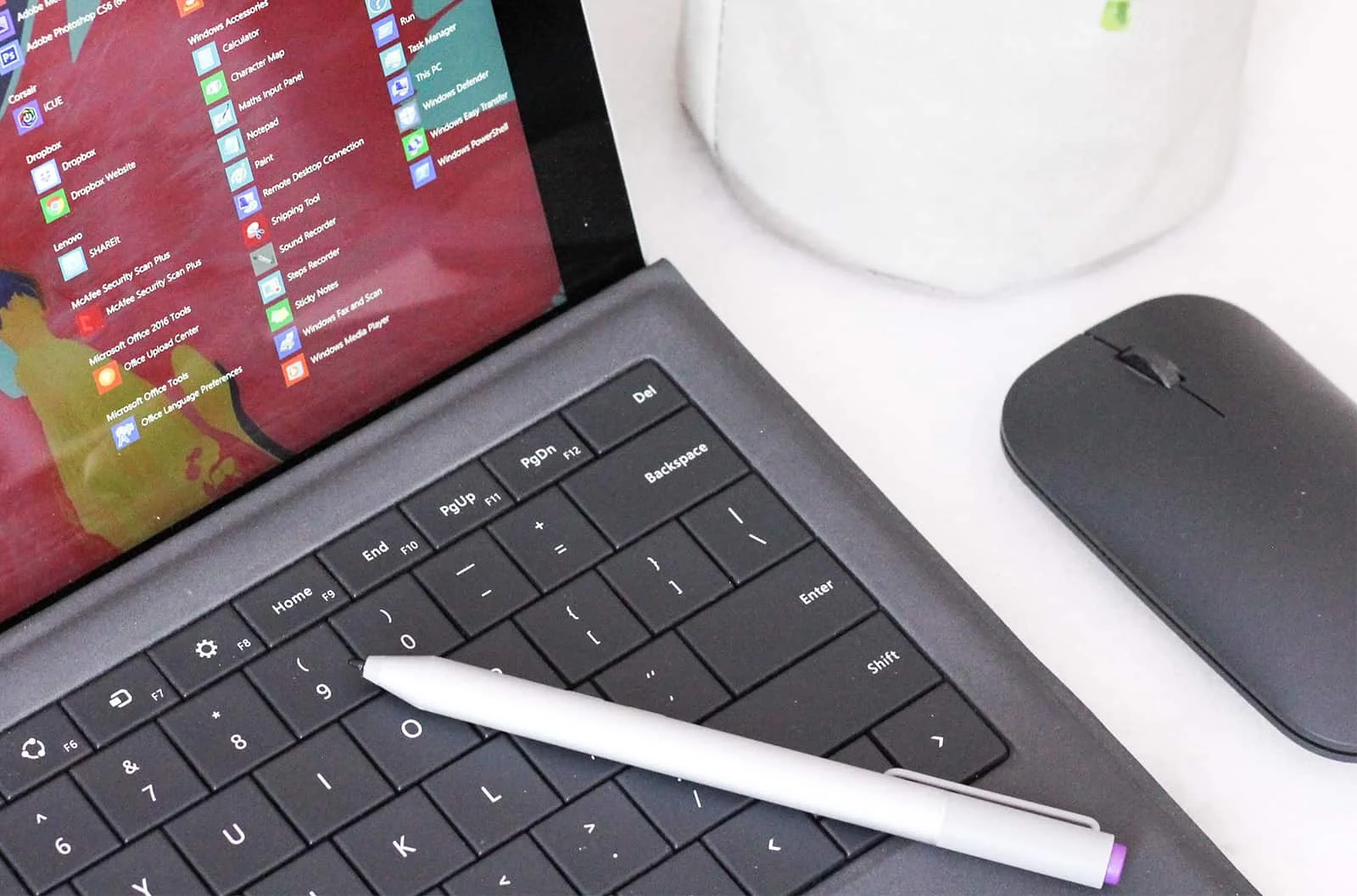
If your laptop has multi-functioned F keys, you can press Fn + F4 keys simultaneously to make undertale fullscreen in windows 10.
Related:
How to Uninstall Smite on Windows 10 and Mac
How to Make Undertale Last Breath Full Screen on Windows 10
If you are playing Undertale Last Breath on Windows 10, you can shift it to fullscreen by hitting the F key on your keyboard.
To exit from the fullscreen, just press the F key again. This will move you to windowed mode from fullscreen mode.
Why is Undertale So Small on My Screen
Undertale appears small on your screen because it is a 2D side-scrolling game. As a result, the graphics of this game are not as detailed as the games featuring 3D graphics.
This is what makes the screen size of Undertale smaller than the other games. But, if you still want to play the game in fullscreen mode, you can do it by pressing the Alt + Enter keys simultaneously.
Troubleshooting Undertale Crashing in Fullscreen Mode
When we launch the undertale in fullscreen mode, it sometimes crash and won’t even turn on. While it runs really smooth in the windowed mode. So, here are some fixes when undertale crashes in the fullscreen mode in windows 10.
1. Set the Display Scaling to 100%
Sometimes due to wrong scaling screen settings, the undertale crashes in the fullscreen mode. So, here we need to do the scaling to full 100%. Here’s how to do scaling to 100%. Click on the Windows icon located at the bottom-left corner of your screen.
- Select the Settings icon.
- Open Display from the System tab.
- Select the Scale and Layout tab.
- Change the scaling of text, apps, and other items to 100%.
- Save the changes.
Related:
How to Download Osu! On Mac
2. Disable or Turn Off the Game Bar
Windows Game Bar can interrupt your gameplay or cause a crash down. If this happens with you during playing the game, disabling or turning off the Game Bar is the best solution.
The step-by-step instructions to disable or turn off the game bar are as follows.
- Press the Window key on your keyboard.
- Open Settings and go to Gaming.
- Turn off the Record game clips, broadcast, and screenshots using the Game Bar option.
- Uncheck the box labeled Show Game Bar when I play fullscreen games.
- Save the new changes and exit.
3. Change Your Main Screen
If you are using dual monitor setup, you may get interrupted during playing the undertale on fullscreen mode. However, this problem can be quickly fixed by changing your main screen. Here’s how.
- Go to Settings and open Display Settings from the menu.
- You will see two monitors labeled with numbers in the Display Settings tab.
- Click Identify and a number will come up on your screen.
- Next set the monitor with the number you previously received.
- Save the changes.
4. Change Nvidia Control Panel Settings
If you have both integrated and dedicated graphics on your Windows 10, you might need to make a few changes to the Nvidia Control Panel Settings to solve this issue. Here’s how.
- Go to the Nvidia Control Panel.
- Select Global Settings from the Manage 3D Settings option.
- Change the settings of the Preferred graphics processor to a High-Performance Nvidia processor.
- Save the changes by clicking the Apply button.
5. Disable TeamViewer
TeamViewer is an extremely popular software and a lot of people have it installed on their PC. Even though it is a great program, it sometimes causes issues while playing Undertale in full screen mode.
You can try to solve the problem by disabling TeamViewer. If disabling the software doesn’t help, you can try uninstalling it and see if it solves the issue.